Guide
How to download your Instagram data
Instagram lets you get a copy of all your data, messages included. To reread them in Throwback, a few settings matter: here they are, screen by screen.
Guide: set up your export the right way
The right settings to get your whole history and enjoy every feature.
The right settings
- Instagram profile
- To device
- Messages + personal info
- All time
- JSON
- Higher quality
The 6 steps in detail
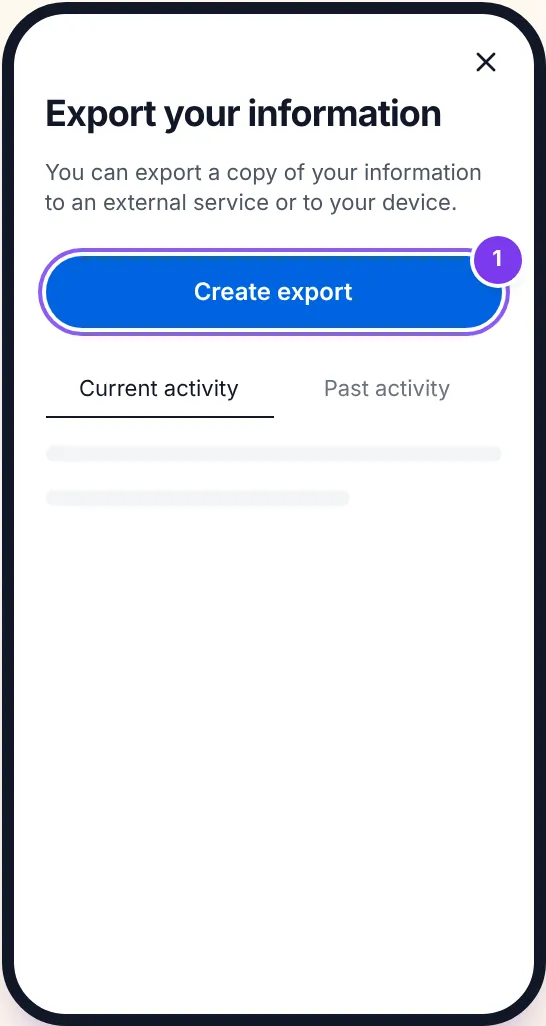
Create an export
Open Meta’s “Export your information” page, then tap “Create export”.
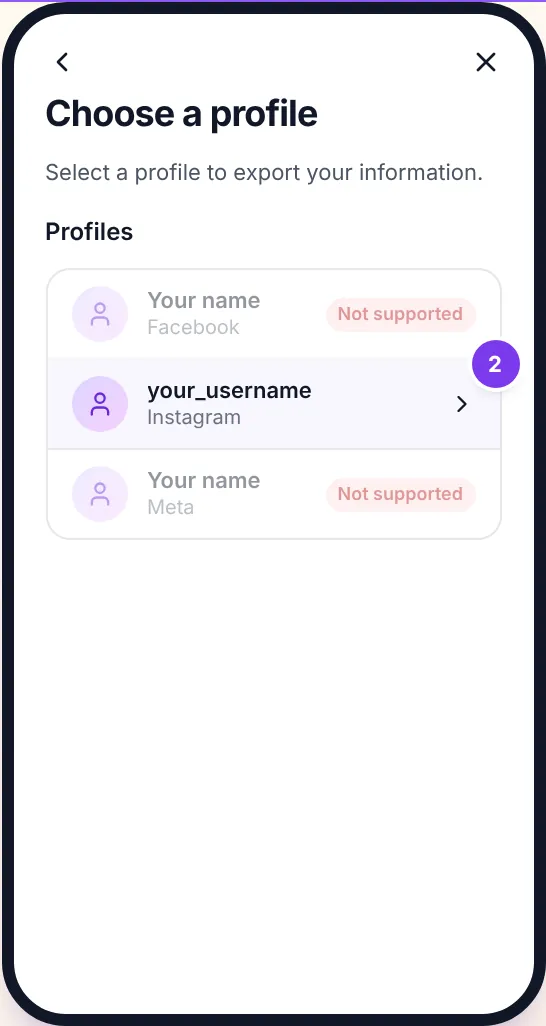
Choose your Instagram account
Select the profile labelled “Instagram”. Exports of “Facebook” and “Meta” profiles are not supported.
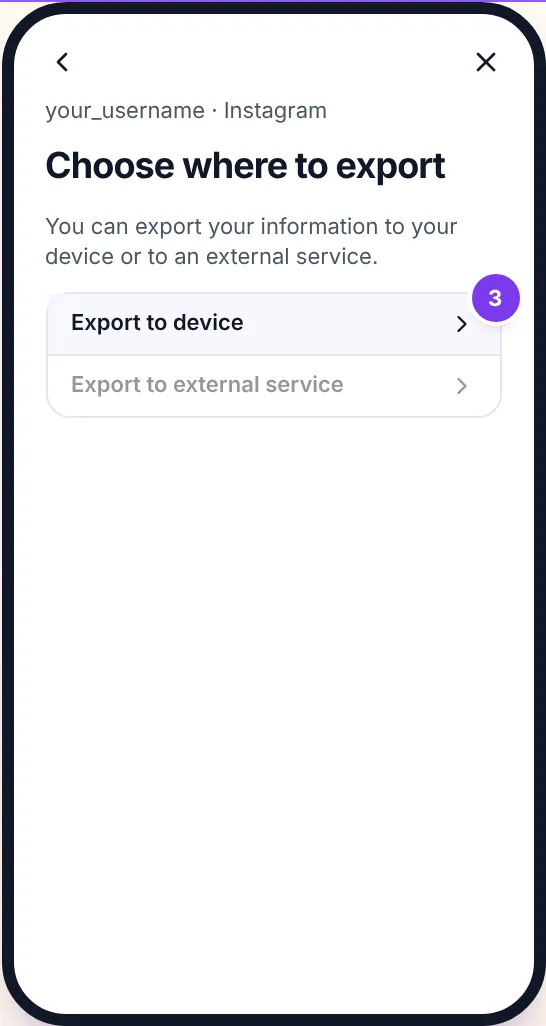
Export to your device
Tap “Export to device”, not “Export to external service”: you will download the ZIP file yourself.
Select messages and personal information
Tap “Customize information” and keep only “Messages” and “Personal information” selected. The export is lighter, so it’s ready sooner, and Throwback recognizes your account in it.
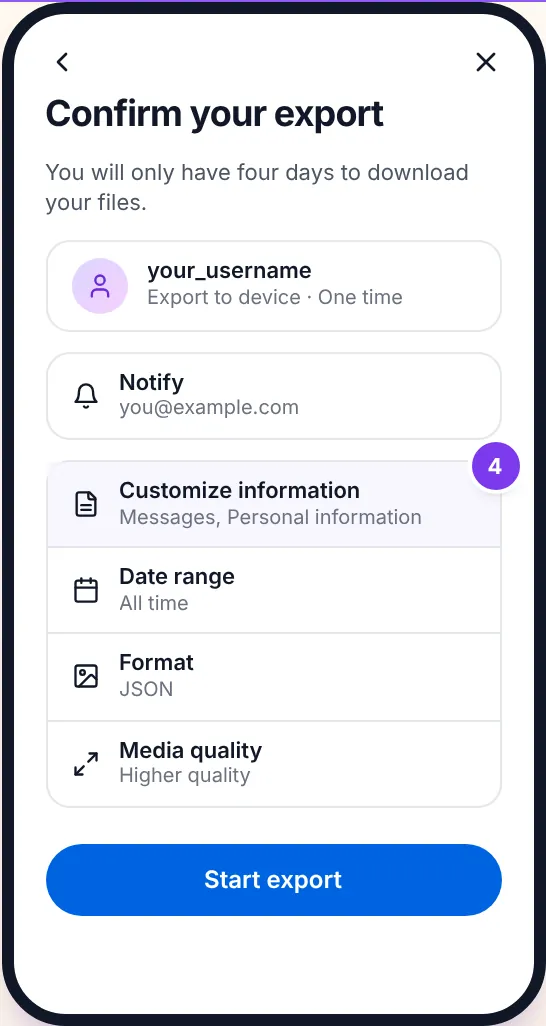
All time, in JSON format
Under “Date range”, choose “All time”: otherwise your oldest conversations would be missing. Under “Format”, choose “JSON”: Throwback can’t read the HTML format, which is selected by default.
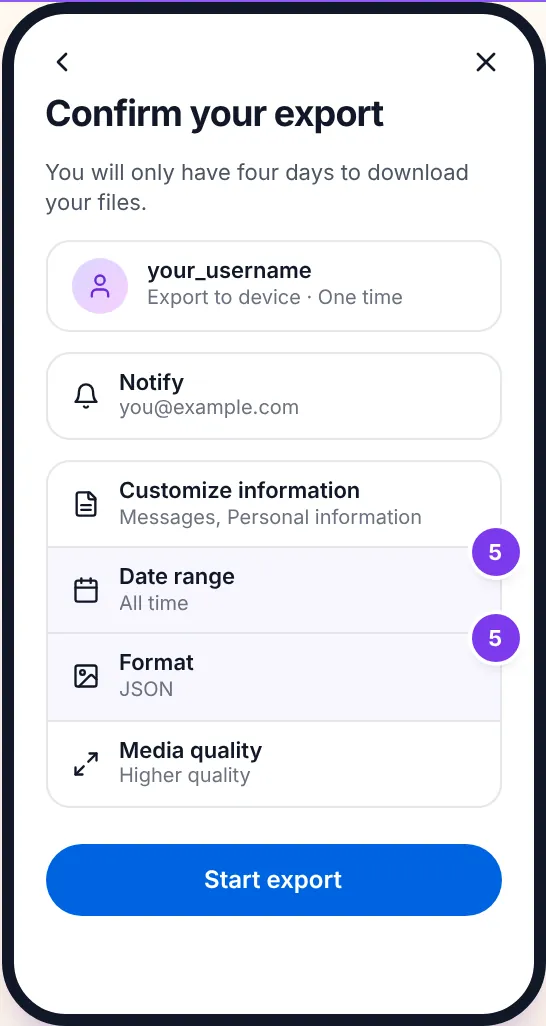
Higher quality, then start
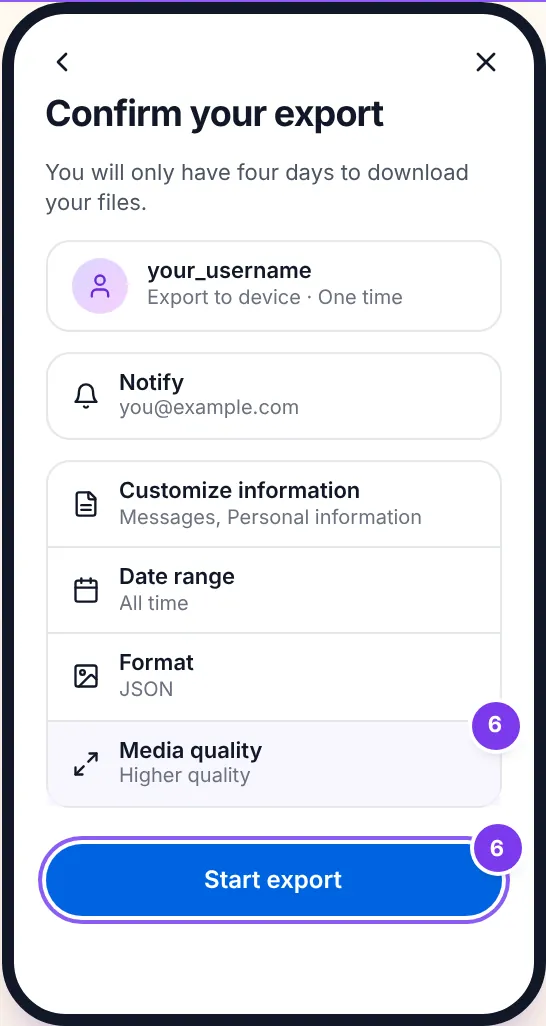
Under “Media quality”, choose “Higher quality” for sharp photos and videos, then tap “Start export”. Meta emails you, often within a few hours: download every file offered within 4 days, then drop them into Throwback.
How long does it take?
Meta prepares the export in anything from a few minutes to a few hours, sometimes up to two days for a very active account. You get an email, and the download link stays valid for 4 days. Ticking only messages and personal information makes the export lighter and faster.
One ZIP file or several?
When your conversations hold many photos and videos, Meta splits the export into several ZIP files. Download them all and drop them into Throwback together, without unzipping: messages and media are merged automatically.
The most common mistakes
- HTML instead of JSON: the export opens in a browser, but Throwback can’t read it. Request a new one and pick “JSON”.
- Date range too short: unless it is set to “All time”, your oldest conversations are missing.
- Wrong profile: an export of the Facebook or Meta profile doesn’t include your Instagram messages.
- Expired link: after 4 days the download is gone and you need to request a new export.
What next?
When Meta’s email arrives, download the ZIP file(s), then drop them into Throwback. Nothing is uploaded: everything happens in your browser.
Next: see the first message of a conversation → Open Throwback